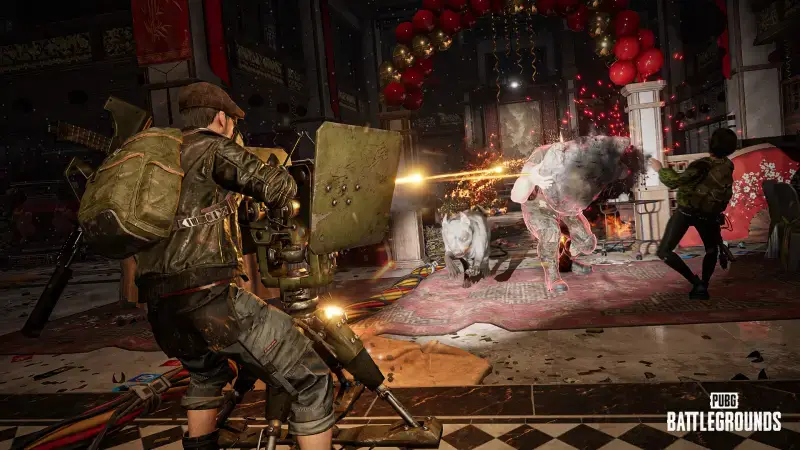
At first glance, the PUBG: BATTLEGROUNDS 43.2 update isn't built around a single big feature. The common thread in the patch notes is that it improves everything "around" the game: how you talk to teammates, how you hold the controller on console, how you form a squad in the lobby and what tools a custom match host has. In other words, a good part of the changes target the menus and shortcuts we touch many times every match rather than headline topics like weapon balance. In this article I've grouped the patch notes by topic instead of following the order of the source. First comes communication and vehicles, then console controls, custom matches, Playgrounds, the lobby and reward screens, and finally the bugs that were fixed.
Let's look at the schedule first, because the update doesn't arrive on PC and console on the same day. Live server maintenance on PC will take place on October 14, 2026, between 00:00 and 08:30 (UTC). Console maintenance is scheduled for October 22, 2026, between 01:00 and 09:00 (UTC). The developers also note that these times may change. This gap matters for console players, because the controller presets I describe below are console-only and will go live about a week after the PC changes.
Team Communication: Message Wheel and Markers Get Revamped
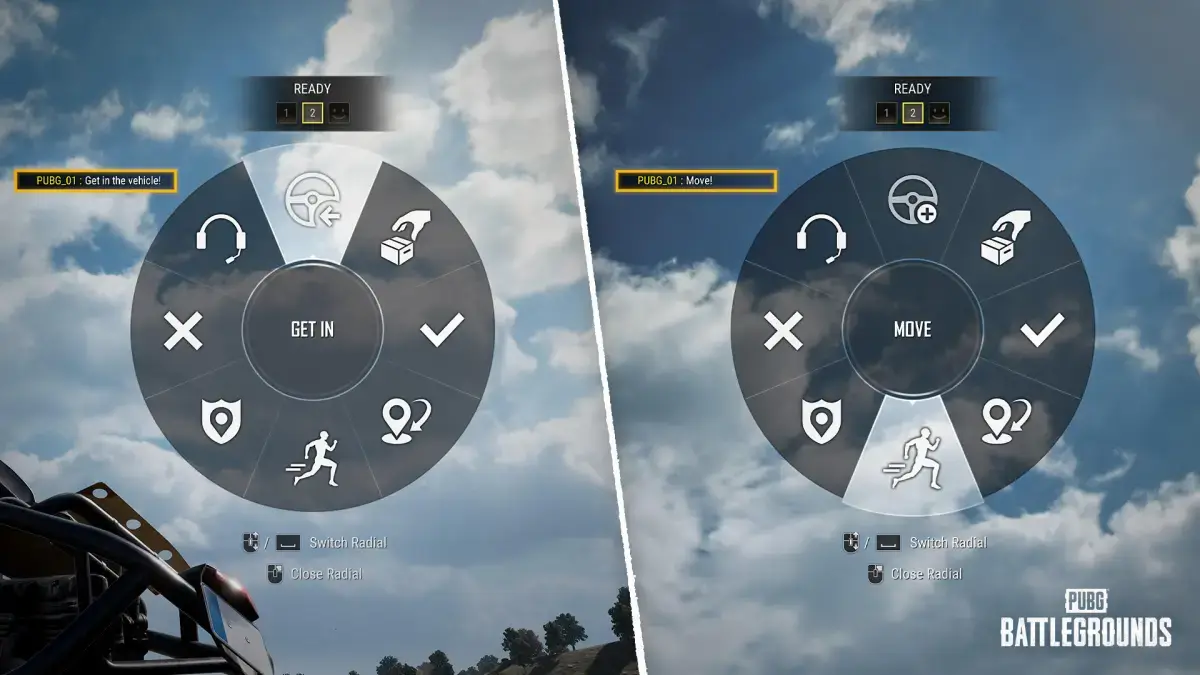
The most visible headline of the update, which applies to all modes, is the improvements to the Message Radial and the marker system. Some phrases and icons on the wheel have been reworked so messages are understood more clearly. A new option has been added to the World Message Radial: a request to get into a vehicle, that is, "Get in the vehicle!". The Thanks message that was previously on the wheel now works as a request to move and says "Move!". Although this second change looks small, it's a clever choice for getting the team off its feet with a single button during the game's most crowded moments, for example when the blue zone is closing in.
The display of item markers has also changed. The marker icon has been renewed, and item markers shown in the world are now visible only within 300 meters. This prevents pings from the far corners of the map from filling the screen. In addition, four objects will now use a world marker instead of an item marker:
- Care Packages
- Deathboxes
- Vending Machines
- Loot Truck crates
What these objects have in common is that players usually run toward them deliberately. Instead of saying "there's something over there," a world marker can more clearly convey "we're going there."
There are also environmental improvements. The dotted line on the Waypoint Radial is now easier to select. Radio messages can be seen even while the inventory is open. This seems likely to reduce the problem of missing the commands your team gives while you're busy with your inventory during looting. An off-screen marker feature has also been added to show markers and teammates that fall outside the World Map view. Even when the map is zoomed in, you'll now be able to tell which direction a teammate is in without scrolling.
Finally, shortcuts have improved. Key bindings that directly open a specific page of the World Message Radial have been added. They can be found under Settings > Key Bindings > UI > Radial. The existing Message Radial shortcut has been renamed "Message Radial - Page 1" and your old binding is preserved. New shortcut settings have arrived for "Message Radial - Page 2" and "Message Radial - Page 3", but no default keys have been assigned to them. So if you want to open pages 2 and 3 directly, you'll need to set the keys yourself.
Vehicle Balance and Special Vehicle Skins
The first vehicle change targets the inconsistency between Normal and Ranked matches. On Erangel, Miramar, Taego, Vikendi, Deston and Rondo, vehicle types and spawn counts will now be the same in both modes. Vehicles that previously spawned in only one mode can now be found in both. This matters for players who practice in Normal matches while preparing for Ranked. Your chances of finding a vehicle and your routes across the map get closer between the two modes, so you don't have to rebuild your habits from scratch when you switch.
The Motor Glider has a separate set of rules. A total of 6 gliders will spawn on all eligible maps, and this rule works the same in Normal and Ranked matches. The breakdown of these 6 gliders is as follows:
- Fixed spawns: 2. They spawn at two fixed locations on each map and come with some fuel inside.
- Random spawns: 4. They spawn at random locations among 20 spawn points and come without fuel.
In practice, this distinction means the following: since the gliders at fixed locations are known points, players can rush those spots in competitive play. Because the randomly spawned ones have no fuel, a player who gets a glider will first have to find fuel. The fuel shortage turns the glider from an always-ready escape vehicle into a resource management question.
On the Special Vehicle Skin side, ease of use is being improved. Four new skin slots have been opened under Vehicles in the customization menu, raising the total number of slots from 3 to 7. The equipped skin information shown on the right side has also moved to a wheel layout. In-match, the old list-based skin selection interface has given way to a wheel interface. The first slot is reserved for the normal vehicle skins, and the remaining slots show the special skins you've equipped.
How you use it depends on the platform:
- PC: Hold the H key to open the skin wheel. When you release the key while hovering over the skin you want, the skin is applied. Right-clicking closes the wheel without applying a skin.
- Console (Type A/B/C presets): LB + X opens the wheel. After selecting a skin, you apply it with A, RT or the L Stick. The B button closes the wheel without applying a skin.
For a player who has collected many special skins, the old list approach was both slow and distracting during a match. Since the hold-and-release logic follows the same pattern as the message wheel, it's likely a side benefit that the two systems complement each other.
New Controller Presets for Console Players
This console-only section doesn't affect PC players. The in-game control scheme improvements announced in the previous developer letter are being implemented with the October update. The goal is to make the controls, which have grown complicated over the years as new features were added, more intuitive and consistent. To that end, two new presets are arriving: PUBG Standard and Shooter Standard. After the October update, the following presets will be available on console: PUBG Standard (new), Shooter Standard (new), Type A, Type B, Type C and Custom.
PUBG Standard was designed to shorten the time it takes newcomers to get used to the controls. Controls familiar from other console games have been adapted to PUBG's gameplay. This will also be the default preset for new players. Shooter Standard, on the other hand, focuses on consistency. Similar actions are assigned to similar places, exceptions for specific situations have been reduced, and the aim is for learned controls to work the same way in different situations. The shared principle of the two presets is the same: the left hand handles movement and view, while the right hand handles action and attack.
The developers' comments support this distinction as well. PUBG Standard aims for the controls to get in the player's way less from the very first match. Shooter Standard aims to let players focus on the game rather than thinking about the controls once they've gotten used to them. The developers say they want to offer new schemes while preserving the familiar experience of players who are accustomed to the existing controls. The key details are:
- Your saved controller settings are preserved.
- PUBG Standard and Shooter Standard do not support customization.
- Type A/B/C and Custom remain unchanged as they are.
Marker and Message Radial controls have also been renewed on console. The R Stick is now used to navigate the Message Radial and select an item. The wheel stays active as long as you hold the assigned button, and when you release the button the selected item takes effect. This way you can use the wheel comfortably even while moving. Enemy markers can now be used both while aiming and while not aiming. The Radio Message Preset option has been removed entirely.
There are other fixes covering all controller presets. The activation time of actions performed by holding a button has been shortened slightly, which improves responsiveness. Navigating the World Map with a cursor is now possible, and the buttons below the map can be selected with the A button. Moving emotes are now canceled involuntarily less often when used with a controller. To achieve this, the accepted range of L Stick input has been widened, making it easier to keep an emote going while moving forward.
In Custom presets, Scope Aim and Kick can now be assigned to the same button. If you'd rather put them on separate buttons, you just need to assign a separate button to the Kick action. If the Kick key binding doesn't work properly in an existing Custom preset, it's recommended that you reset the preset and reconfigure the keys. Console players who use a Custom preset after the update would do well to keep this warning in mind.
Custom Matches: New Powers for the Host
The changes on the Custom Match side are too many to sum up under a single heading. Host features and the lobby experience have been improved across the board. This list is equally interesting for communities organizing tournaments and for players setting up fun matches with friends. Below I go through each feature together with the modes it applies to.
Explosion Force Settings apply to Custom Match - Normal Mode. An option that adjusts explosion force with a multiplier has been added, and the force can be set between 0 and 10 times. You can adjust the force of all explosives at once, or set the following items individually:
- Frag Grenade
- Sticky Bomb
- C4
- Panzerfaust
- Mortar
- Gas Can
- Red Zone
- Gas Station
- Vehicle
This setting opens up a serious playground for creative mode ideas. By dropping the force to zero you can reduce explosions to a pure damage source, and by raising it you can set up funny scenarios that launch vehicles and players absurd distances.
Force End Match works in Custom Match - Normal Mode, Esports Mode and Intense Battle Royale. The host can end an ongoing match with the "Force End Match" button in the bottom left corner of the system menu (ESC). When a force end occurs, a notification is shown to all participants and the match ends after 10 seconds. Everyone then returns to the Custom Match lobby, and the Match Results screen is not shown. Being able to close stuck, wrongly started or timed-out matches without waiting should make event management easier.
Lobby Chat (PC) applies to all Custom Match modes. Hosts can configure lobby chat. If "Host Only" is selected, only the host can send messages to all participants. Even if chat directed at everyone is turned off, other chat features such as Team Chat, whispers, notifications and system messages are not affected.
Random Team Assignment is available in Normal Mode, Intense Battle Royale, Team Deathmatch and Hot Drop modes. The host can distribute the participants in the lobby into random teams. Spectators and players not yet assigned to a team are left out of this distribution. The assignment is made with the button in the top right corner of the lobby screen. Players are filled in starting from Team 1, with each team filled up to its maximum size. In two-team modes, players are distributed as evenly as possible. This feature can't be used if solo settings or separated slots are in use.
Intense Battle Royale Spectator Settings now allow you to configure options related to spectating after death. The following options are available under Match Settings > Rules: Turn Dead Players into Spectators, Killer Spectating and Spectator Voice Chat. On console, only the Killer Spectating option is available.
Hide Player Nicknames applies to all Custom Match modes. It can be enabled from the lobby creation screen and from Lobby Match Settings > Basic. When enabled, the nicknames of all players other than you and your teammates appear as "Unknown #000". This applies everywhere nicknames appear, including the Killfeed, Match Log and kill messages. Real nicknames can still be seen in the Kill Cam and on the Reporting screen. After the match ends, real nicknames are shown on the results screen and in replays. It's a handy option for setting up unbiased matches for streams and tournaments.
At the end of the list there are small but frequently felt improvements. You can join a match directly by double-clicking it in the match list. When you leave a Custom Match lobby, the mode you previously selected stays selected. Team numbers in the lobby and the in-game Spectator screen have been synchronized. If hiding nicknames is on, team numbers continue to be assigned randomly as before. You can also kick a player in lobby chat by selecting their nickname. The ability to kick players through lobby slots remains in place.
PUBG: Playgrounds and Creative Mode Tools
With 43.2, Playgrounds gets both new content and serious editing tools. On the content front, the winners of the PUBG: Playgrounds x CurseForge UGC contest have been decided. The winning modes will be added to PUBG: Playgrounds over three months, from October to December, through updates. You can see the full list of winners in the contest winners announcement. The fact that community-made modes enter the game spread out like this means new content arrives gradually rather than all at once.
The object placement improvements apply to both Custom Match - Playgrounds and PUBG: Playgrounds. Undo/Redo and grouping features have been added. Actions such as object placement and device setting changes can be undone or redone. The shortcuts are Ctrl + Z (undo) and Ctrl + Y (redo). Each player's actions are stored separately and you can only undo your own actions. Up to 50 actions can be recorded. Editor Manager settings such as rules, game options and team settings do not support undo and redo.
The grouping logic works like this:
- Multiple objects are selected with the R key; at least 2 and at most 100 objects can be selected.
- The G key groups the selected objects. Moving or deleting a grouped object moves or deletes the whole group.
- You can add already grouped objects, or an entire group, to another group.
- If the number of objects in a group falls to 1 or below, the group is automatically dissolved.
- You can ungroup by selecting grouped objects and pressing the G key again. Only a single group must be selected for this; if two or more groups are selected, the groups are not ungrouped.
Object outlines also change color depending on the situation: white indicates a single object, yellow indicates a selected object and turquoise indicates a grouped object. On a large map, moving dozens of pieces as a group instead of aligning them by hand will significantly cut down map makers' time.
Two additional improvements have arrived for teams building modes together. Players' object placement actions are recorded in the Log Manager, so you can track who placed what. In Edit Mode, the nicknames of other players on screen are always shown above their characters. This makes it easier to tell where the others are while working together.
Team size settings have also become more flexible. You can set a different minimum and maximum size for each team. This makes modes where teams of different sizes compete possible. By clicking the "+" button under Individual Team Settings in the Editor Manager, you configure the team number, the minimum team size (0-10) and the maximum team size (0-10). The minimum size can't be higher than the maximum, and the maximum size can't be lower than the minimum. A team with a minimum size of 0 can start the match even with no players. If any team is below the minimum size, some teams that have met their minimum can't be selected, and the unselectable teams are shown as disabled. Individual Team Settings take precedence over the default settings applied to all teams.
Spectator slots have also been added to the Team Selection screen in Custom Match, and each slot can hold up to 10 players. The Editor Manager interface has been updated to make the new team size settings and Individual Team Settings easier to use.
Lobby Experience, Supply Bay and Performance
The lobby UX has been overhauled from top to bottom to make forming a squad and starting matchmaking easier. The most notable change is that you can change the host or reorder teammates without disbanding the team. To transfer hosting, you left-click a player's name card in the Lobby or Social tab and use the "Appoint as Host" option. It's possible to kick an offline teammate, and if the host is offline, another teammate can kick them. Previously, when the host lost connection, the squad sometimes had to be rebuilt; this new authority should ease that pain.
In Normal and Ranked lobbies, you can see in advance the in-game numbers assigned to your teammates. The host can change a teammate's in-game number by dragging their name card. The host's number is fixed at 1. If Random Matchmaking is enabled, teammates' numbers are not shown. The host icon is also easier to spot now.
Another important change is in the ready rule. In Normal and Ranked lobbies, matchmaking starts as soon as the host selects "Play". Unlike before, not all teammates need to be ready. This gives a quick start, but it may have an unexpected side effect: since matchmaking can be started before a teammate is ready, it would be good for the host to keep communication strong. In the lobby you see more detail about your teammates' status: it shows whether they're looking at another menu and whether they're away because of no input for a certain period. The Matchmaking banner can also be dragged to wherever you like, which reduces cases where it covers other information and buttons on the screen.
Seeing and claiming rewards in the Supply Bay has been made easier. The cargo opening animation changes depending on whether the cargo contains a Gold Card. When a special item comes out of a Gold Card, a separate animation plays, making the item easier to notice. The spawn conditions of the Gold Card and its existing animation do not change. In other words, this is only a presentation improvement, not a change to luck or odds.
The Cumulative Rewards screen has also gotten smarter. When you enter the screen, the section matching your current progress is shown automatically. If there is a reward you can claim, you go to the first claimable reward; if not, you are directed to the next cumulative reward in your progression. A "Claim All" button has been added that becomes active when at least one cumulative reward can be claimed. The rewards claimed with this button can be viewed on a single screen. Instructions explaining how to use cumulative rewards have also been added.
On the performance side, in-game performance has been generally optimized for smoother gameplay. On PC, the internal sound engine has been updated to ensure stable maintenance and management of the audio system. The developers state that the current in-game audio experience has not changed. In the Workshop, new items have been added to Hunter's Chests: WINTER'S WILDEST CREATURES and SURVIVOR PASS: ERANGEL SUBZERO.
Map Changes, Events and Collaborations
Two concrete changes stand out on the maps. First, the buildings and decorations belonging to the PUBG x Jujutsu Kaisen collaboration have been removed from all maps. Since this kind of collaboration content is time-limited, this removal is an expected cleanup step. Second, on Erangel, terrain destruction textures have been improved, applying to all modes. The soil and rock textures that appear after the terrain is destroyed look darker than before. This makes it easier to tell destroyed areas from intact ones. This could be useful especially for players who want to see destruction zones clearly while running or moving between cover.
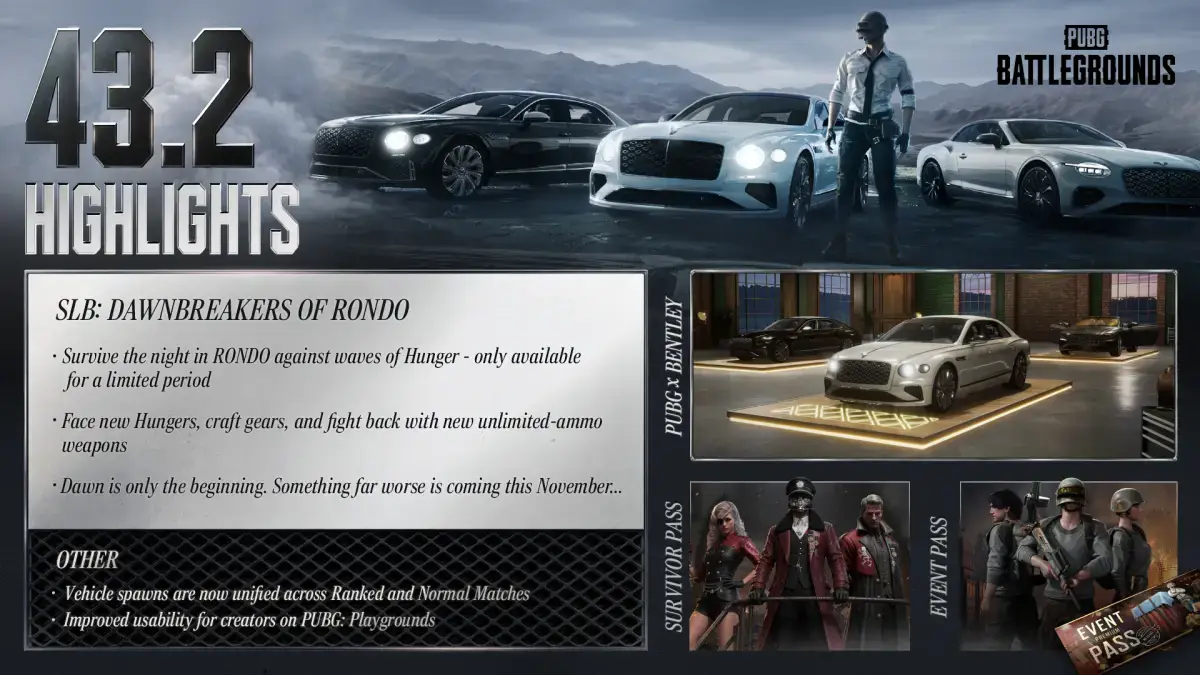
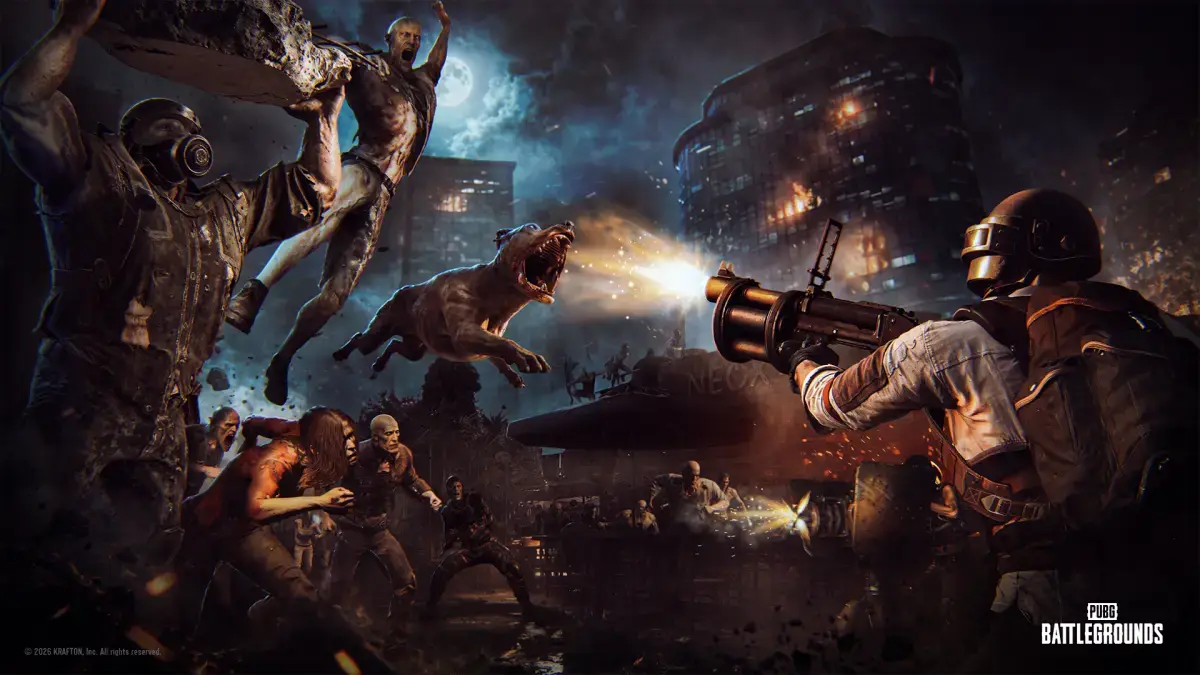
The highlights section of the update notes includes two more announcements. The first is the "SLB: Dawnbreakers of Rondo" event. According to the announcement, those who are suspiciously gluttonous are returning to PUBG: BATTLEGROUNDS. Players are expected to run the generators, survive Rondo's deep night and greet the dawn. The second is the PUBG x BENTLEY collaboration: Bentley, known as a symbol of elegance and distinction, is coming to PUBG: BATTLEGROUNDS. For details, you need to check the developers' own announcement pages. A separate Map Service Report has also been published for regional preferences and rotation of the maps. The notes also remind that the features described may change or be removed due to bugs, in-game issues and community feedback, and that the images are for visual reference only.
Fixed Bugs: From Gameplay to Cosmetics
Bug fixes make up a large part of the patch notes. I've gathered the ones that directly affect gameplay:
- Fixed an issue where the parachute could open at a lower altitude than it should after jumping from the starting plane.
- Fixed the landing sound not playing when landing after a Jump Kick.
- Fixed the scope not being in the center of the screen when aiming on the water surface.
- Fixed players being able to kick while moving when the inventory was opened during a kick.
- A character under the effect of a Stun Gun did not die instantly when health dropped to 0, despite being unable to enter the DBNO state. This bug has been fixed.
- Fixed Gas Cans not exploding from Molotov flames while on world vehicles such as ferries, cable cars and trains.
- Fixed the execution animation being shown incorrectly when the player being executed was forced out of the game during the execution.
- Fixed an issue in PUBG: Playgrounds - Road To Pan mode where characters spawned underground when respawning.
- Fixed player and Bot team numbers not being shown as intended in Casual Mode.
- Fixed the revive animation sometimes playing without the revive progressing properly.
- Fixed melee weapons thrown by another player from a vehicle's passenger seat not being shown in the Kill Cam.
- Fixed an issue where previously assigned actions would involuntarily come back when the Controller Custom Preset was reopened after some key bindings were changed.
There are also PC-specific fixes. Fixed a crash that could occur under certain conditions when editing the item list of the Market Device in Custom Match - Playgrounds. Fixed the Action Restriction Device's restrictions remaining active when switching from Play Mode to Edit Mode. Also fixed other players' characters being displayed in places different from their actual positions under certain conditions.
On the world side, collision, texture, stability and various other issues on Karakin have been fixed. Characters spawning underground at a certain starting point on Rondo has been fixed. Also fixed in Intense Battle Royale on Haven: the World Map being shown in different positions depending on the play area when zoomed out.
The fixes under UX/UI cover a very wide range:
- Fixed weapon category tabs appearing incorrectly when viewing Custom Starting Kits in Team Deathmatch while the language was Arabic.
- Fixed Waypoints not being shown on the Mini Map after switching seats in a vehicle.
- Fixed the Supply Bay page disappearing under certain conditions.
- Fixed players occasionally being unable to enter the lobby when returning from a match.
- Fixed players being unable to enter the match and seeing an error message when the client was minimized as the match started.
- Fixed some previous seasons' Medal images appearing in the wrong position when viewing player profile stats under Career > Leaderboard.
- Fixed Preset Slots in Customization not activating immediately after purchasing the PUBG Plus upgrade.
- Fixed the Go button not directing the player to the Contender Supply Bay page after purchasing a Contender Cargo Ticket from the store.
- Fixed the confirmation shortcut not working while the text field was active on the secondary password entry screen.
- Fixed rankings on the Playgrounds results leaderboard not being shown correctly by number of wins.
- Fixed the key assigned for Switch Scope Mode not being shown when Settings was reopened.
- Fixed the weapon attachment slot interface occasionally not being shown when a primary weapon was picked up in Intense Battle Royale.
- Fixed the weapon in Primary Weapon Slot 2 clipping with the backpack when switching from FPP to TPP.
- Fixed the remaining time text being misaligned in Login Events.
- Fixed the player's own off-screen markers not being shown on the Mini Map when the Team Marker and Waypoint Display option was turned off.
On PC, bugs were also fixed such as Solo records of Ranked Seasons 36 through 42 not appearing under Career > Stats, team rankings in PUBG Bridge's 2D Replay being shown differently from the actual results, and focus not working properly in the Team Management menu with a controller. On console, the marker function not working properly when the Show/Remove Marker action was assigned separately in Controller Custom Presets has been fixed. This last item is especially important for console players, as it is directly related to the new marker system.
Item and skin fixes are mostly about clothing clipping issues; in the notes this term is defined as one object hiding part of another when the two intersect. For example, part of the female character's hip became transparent when wearing Time Keeper's Shorts, and this has been fixed. The motion in Glasya's Hair was not displayed properly, and that was fixed too. The 10000DAYS' Top was not visible on the male character, which was also fixed. The sleeves of some jackets looked wider than they should. When HUYA Tactical Gloves were worn with some jackets, the female character's wrist looked transparent. When the PGI.S Tactical Hoodie and the Happy 7th Anniversary Unicone Hat were worn together, part of the male character's nape hair was not visible. On the Eve character, animated parts on some helmets didn't move properly. Wearing Rebel at Heart Boots with some multi-slot outfits caused transparency on the calf, and wearing Plaid Shorts with Twisted Devotee Boots caused it at the ankle. When the Pool Party Swimsuit was worn, parts of some gloves were not visible. Clipping of GI Army Pants with some boots, and of certain pants-and-boots combinations, was also fixed. Taken together, this list shows that players with large cosmetic collections will see their characters looking cleaner.
What Does 43.2 Mean?
Looking at the big picture, the priority of 43.2 is to reduce the game's much-complained-about "friction points." It has to be admitted that changes like the Message Radial, marker distance, the vehicle skin wheel and host transfer in the lobby may not be exciting one by one. But these are things felt every day, in every match. The communication side in particular means clearer signals for players who don't use voice chat or who face a language barrier.
For console players, the newcomer-friendly face of the update is the PUBG Standard preset. Experienced players, on the other hand, get a chance to try Shooter Standard without losing their current settings. Since existing settings are preserved, the risk is low. Still, if you use a Custom preset that assigns Kick and Scope Aim to the same button, you may need to check your preset after the update. Because console maintenance is on October 22, you'll have to wait longer than PC to get these new features.
For those who run community servers and organize tournaments, the Custom Match tools may be the real star of this update. Features like force end match, random team assignment, hiding nicknames and spectator settings move jobs that were previously solved by hand into the system. The undo/redo and grouping tools on the Playgrounds side also directly target mode makers. The fact that the winning modes of the UGC contest arrive gradually through December shows that the results of these tools will reach the game in a short time.
What to do after the update is short: on PC, after maintenance, assign keys for Message Radial Pages 2 and 3 under Settings > Key Bindings > UI > Radial. On console, review your controller preset. In the lobby, talk with your team about the host and number arrangement. Since the details in the official patch notes may change based on bugs, feedback and test results, it wouldn't be surprising if additional fixes arrive in the coming days.