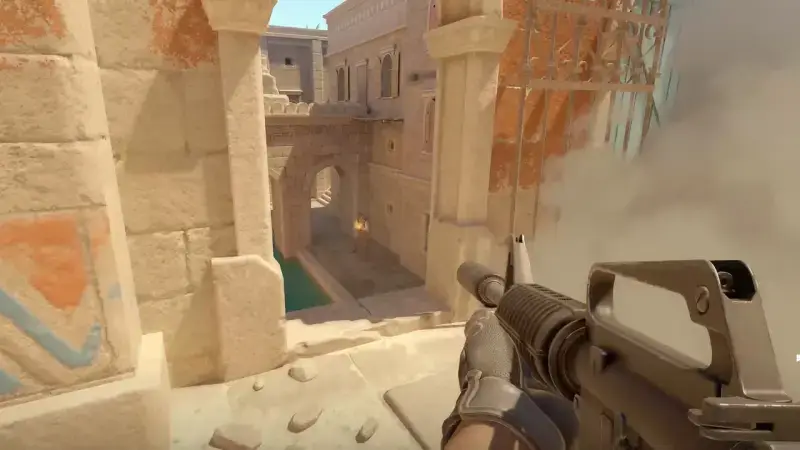
In Counter-Strike 2 the crosshair is the one piece of the interface that never leaves your eyes. Its size, colour and centre gap decide how quickly you pick up a target and where your first bullet lands. The good news is that tuning it in CS2 needs no downloads and no third-party tools that could look suspicious. The game's own menu, console commands and share codes are all you need. In this guide we go through every command that shapes the crosshair, give you four ready-made setups you can paste straight in, and show how to keep your settings from one session to the next.
Open the Console First: Settings and Share Codes
To type commands you need the developer console. In Settings > Game, set "Enable Developer Console (~)" to "Yes"; the ~ key then opens and closes it. None of the crosshair commands require sv_cheats, so they behave the same in Competitive, in Premier and on your own server.
If you want a friend's or a streamer's crosshair, there are two ways. The first is the menu: press the share/import button in Settings > Game > Crosshair, paste the code that starts with CSGO- and import it. The second is the console: typing apply_crosshair_code CSGO-xxxxx-xxxxx-xxxxx-xxxxx-xxxxx applies the code instantly. Because it is a command, it can also be bound to a key; with bind kp_1 "apply_crosshair_code YOURCODE" you can put one crosshair on numpad 1, another on numpad 2, and switch with a single press.
The Core Commands Behind Your Crosshair
A share code is really the values below squeezed into one line. Once you know the commands, you can fine-tune a crosshair to your own eyes instead of copying a code blindly:
cl_crosshairstyle— How the crosshair behaves. 0 default, 1 classic static, 2 classic dynamic, 3 dynamic, 4 static, 5 legacy.cl_crosshairsize— Length of the four lines. A small value means short lines.cl_crosshairgap— The centre gap. Negative values pull the lines together; that is where the tight crosshair many competitive players use comes from.cl_crosshairthickness— Line thickness.cl_crosshairdot— Set to 1 to add a centre dot.cl_crosshair_t— Set to 1 to remove the top line and get a T shape.cl_crosshair_drawoutlineandcl_crosshair_outlinethickness— The black outline around the lines and its thickness.cl_crosshaircolor— Presets: 0 red, 1 green, 2 yellow, 3 blue, 4 cyan; with 5 the colour comes fromcl_crosshaircolor_r,_gand_b(0-255).cl_crosshairalphaandcl_crosshairusealpha— Transparency (0-255) and whether transparency is used at all.cl_crosshair_recoil— When enabled, the crosshair follows the weapon's recoil pattern.
Static or Dynamic?
Most competitive players use style 4, the static crosshair that never grows or shrinks. The reason is simple: in CS2 your accuracy already drops while you move, and a marker that jumps around only distracts you. A static crosshair always shows the same point, and the habit of stopping before you shoot becomes yours to build.
The dynamic styles (2 and 3) open up while you run or jump, showing how inaccurate you are at that moment. If you are still learning the game, that feedback helps: watching the crosshair spread while you run makes it obvious why shooting on the move is wasted. Style 5 only reacts when you fire, a middle ground for anyone practising spray control who wants to see how far the shots spread after the first bullets.
Copy and Paste: Four Ready-Made Setups
You can paste the lines below into the console as they are; each command separated by a semicolon runs in turn. If you dislike one value, simply type that command again with a new number.
1. Small static cross (the most common competitive choice):
cl_crosshairstyle 4; cl_crosshairsize 2; cl_crosshairgap -3; cl_crosshairthickness 1; cl_crosshairdot 0; cl_crosshair_t 0; cl_crosshair_drawoutline 0; cl_crosshaircolor 1; cl_crosshairalpha 255; cl_crosshairusealpha 1
Short lines and a tight gap make it easy to centre a target without covering a head at long range. Green stands out against the background on most maps.
2. Dot only:
cl_crosshairstyle 4; cl_crosshairsize 0; cl_crosshairthickness 1; cl_crosshairdot 1; cl_crosshair_drawoutline 1; cl_crosshair_outlinethickness 1; cl_crosshaircolor 5; cl_crosshaircolor_r 0; cl_crosshaircolor_g 255; cl_crosshaircolor_b 255
With the line length at zero, only an outlined dot remains. It covers the target the least, but it can get lost in fast fights, so try it on a practice map first.
3. T shape:
cl_crosshairstyle 4; cl_crosshairsize 2.5; cl_crosshairgap -2; cl_crosshairthickness 1; cl_crosshair_t 1; cl_crosshairdot 0; cl_crosshair_drawoutline 1; cl_crosshaircolor 4
With the top line gone, an enemy's head never disappears behind the crosshair. Cyan reads well on warm-toned maps.
4. Dynamic, for learning:
cl_crosshairstyle 2; cl_crosshairsize 3; cl_crosshairgap 0; cl_crosshairthickness 1; cl_crosshairdot 1; cl_crosshair_drawoutline 1; cl_crosshaircolor 2
This crosshair opens as you move and shows exactly when your accuracy drops. Once stopping to shoot has become second nature, switching to the first setup makes sense.
Colour and Visibility
The right colour depends on the map and on your eyes. On sandy, yellowish maps a yellow crosshair can blend into the ground, which is why green and cyan are the most popular picks. To find your own shade, set cl_crosshaircolor 5 and enter the RGB values by hand. An outline helps the colour stand out on any surface, but it also thickens the lines, so keep cl_crosshair_outlinethickness low on small crosshairs. If you are colour-blind, cyan or a custom blue-yellow tone is usually easier to track than green or red.
Make Your Settings Stick
Changes you make in the menu are saved to the game's own settings file. If you play on more than one PC or simply want a backup, the cleanest route is an autoexec file: in the game's install folder, create a text file called autoexec.cfg under game\csgo\cfg, paste your preferred line into it, and add +exec autoexec to CS2's launch options in Steam. Your crosshair will then be the same every time the game starts. You can add the bind lines for your favourite share codes to the same file.
Before You Copy a Pro's Code
Pro player codes circulating online look tempting, but players change their crosshairs often, and it is normal to find different codes for the same name on different lists. Trying a code does no harm; still, the best crosshair is the one that looks sharp at your monitor's resolution and to your eyes. Playing a week with the same settings and then changing a single value gets you further than trying a new code every match.
If you want to know how the ranking system works in CS2, read our guide to Competitive and Premier ranks, and if you also play Valorant, take a look at our Valorant crosshair codes article.