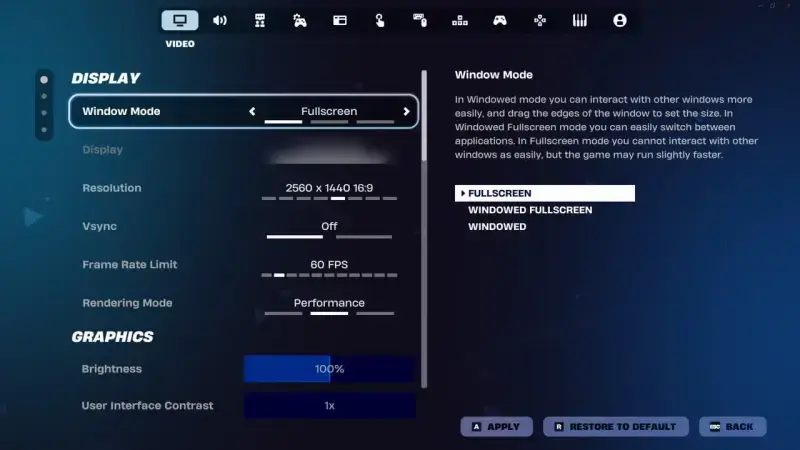
Fortnite today is a game that can use Unreal Engine 5's most impressive features: Nanite, Lumen and hardware ray tracing. The same game, with the right settings, can also run on a laptop from a decade ago. The difference between the two lies in a handful of choices in the settings menu. In this guide we first look at Epic Games' official system requirements, then explain in order what each setting changes for high FPS and low latency.
Where Does Your PC Stand? Official System Requirements
Epic defines three hardware tiers for Fortnite. Knowing which one your PC is closest to before you touch any settings helps you set the right expectations.
- Minimum: Intel HD 4000 or AMD Radeon Vega 8 graphics, Core i3-3225 3.3 GHz processor, 8 GB RAM, Windows 10 22H2 (64-bit).
- Recommended: Nvidia GTX 960, AMD R9 280 or an equivalent DX11 GPU, 2 GB of video memory, Core i5-7300U 3.5 GHz or AMD Ryzen 3 3300U, 16 GB RAM, NVMe SSD, Windows 10/11 64-bit.
- Epic quality preset: Nvidia RTX 3070, AMD Radeon RX 6700 XT or equivalent, at least 8 GB of video memory, Intel Core i7-8700 or AMD Ryzen 7 3700X, 16 GB RAM, NVMe SSD, Windows 10/11 64-bit.
According to Epic's own note, a PC that only meets the minimum requirements will run the game, but probably not on the highest settings. The 16 GB of RAM and the NVMe SSD in the recommended tier matter in particular: a good share of the stutter you see while the map loads and in crowded fights comes down to memory and disk speed.
The Most Important Choice: Rendering Mode
The Rendering Mode option in the Display section of the video settings makes a bigger difference than any other setting. Epic recommends Performance mode for competitive play and states that it disables most rendering features to reduce memory usage and lighten the load on the CPU and GPU. Visual quality drops noticeably; in exchange, frame rates rise on both powerful and modest PCs.
DirectX 12 mode, on the other hand, opens the door to Unreal Engine 5 features such as Nanite, Lumen and ray tracing. If you play for the scenery and your graphics card is close to the Epic quality tier, DirectX 12 is a fine choice. But if frame rate and latency come first in competitive matches, Performance mode makes more sense.
Recommended Settings for High FPS
The values below are a starting point that matches Epic's recommendations for competitive play. Every PC is different, so you can fine-tune them one by one afterwards.
- Window Mode: Fullscreen. The game becomes your PC's focus instead of competing with other windows, and input lag drops.
- Resolution: your monitor's native resolution. Many competitive players use 1920x1080.
- Vsync: Off. It is recommended to turn it off because it adds input lag. A FreeSync or G-Sync monitor can prevent screen tearing.
- Frame Rate Limit: Unlimited. If you see tearing, match it to your monitor's refresh rate.
- View Distance: Near. According to Epic, players remain clearly visible even at this setting.
- 3D Resolution: 100%. If your FPS is not enough, lower it in 10% steps until you reach the performance you want.
- Textures and Meshes: Low. Gives up detail to make room for frame rate.
Advanced Settings That Cut Latency
High FPS alone is not enough; the time between your click and the reaction on screen matters too. Two settings stand out in the Advanced Graphics section. The first is Show FPS: it displays your real-time frame rate and lets you measure the effect of every change you make. The second, if you have an Nvidia graphics card, is NVIDIA Reflex Low Latency: Epic recommends using it at "On + Boost".
Sound is part of competitive play as well. The 3D Headphones option in the audio settings produces directional sound in your headphones, and Visualize Sound Effects marks the direction of certain sounds with a radial indicator on screen. Epic recommends using the game's own 3D audio rather than running separate audio software in the background.
What You Can Do Outside the Game
Some of the work happens outside the game. Keeping your graphics driver up to date, closing programs that eat CPU and GPU resources while you play, and installing the game together with your operating system on an SSD directly affect loading times and stutter. If you have a monitor with a refresh rate of 120 Hz, 144 Hz or higher, you can actually see the high frame rate you get from the settings above; on a 60 Hz screen, producing 200 frames per second is not reflected in the picture to the same degree.
A Quick Way to Measure
When changing settings, adjust only one value at a time and check the FPS counter in the same place, for example an empty island in Creative mode. Start with Performance mode; if your frame rate is comfortably above your monitor's refresh rate, keep 3D Resolution at 100%. If not, lower view distance and textures first and touch 3D Resolution last. That way you see which setting really makes a difference and you do not give up image quality for nothing.
If you are curious about Fortnite's upcoming horror season, read our Fortnitemares 2026 article, and if you are looking for similar settings in another competitive game, see our Rainbow Six Siege X settings guide.