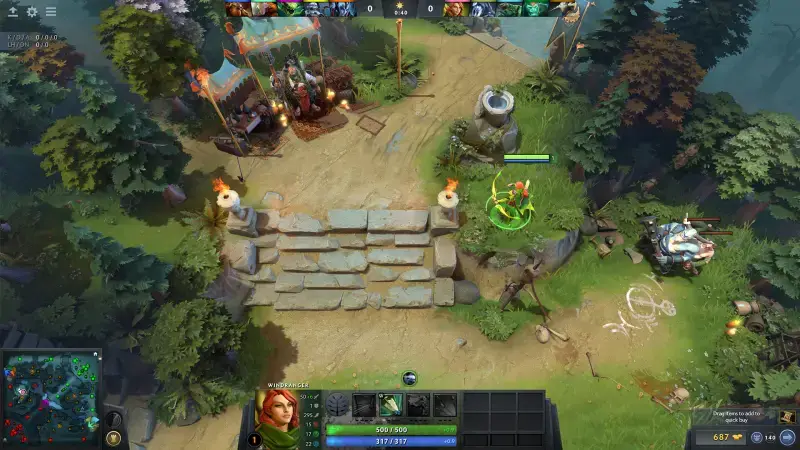
Dota 2 has been around for well over a decade, so many players assume their PC "will run it anyway." That is mostly true, but over the past few years Valve has quietly said goodbye to a lot of older technology: support for 32-bit systems and OpenGL is gone, DirectX 9 users were moved to DirectX 11, and graphics cards without DirectX 11 support are next in line. In this guide we go through the official requirements from the Steam store page for Windows, macOS and Linux, explain which lines of that list are now outdated, and show what you can change in the game's video menu to raise your frame rate.
Official Requirements for Windows
On Dota 2's Steam page, Valve only lists minimum requirements; there is no separate "recommended system" list. These are the values given for Windows:
- Operating system: Windows 7 or newer (in practice Windows 10 and later, we explain why below)
- Processor: A dual-core Intel or AMD processor at 2.8 GHz
- Memory: 4 GB RAM
- Graphics card: NVIDIA GeForce 8600/9600GT, ATI/AMD Radeon HD2600/3600
- DirectX: Version 11
- Storage: 60 GB available space
- Network and sound: A broadband internet connection and a DirectX-compatible sound card
The lack of recommended specs does not mean "if I meet the minimum, I'll play comfortably." This list shows the floor at which the game can start. To stay smooth in crowded team fights, when lots of effects hit the screen at once, being comfortably above that line on both CPU and GPU makes a difference. Don't underestimate the 60 GB storage requirement either; updates arrive often, so leaving some headroom on your drive is a good idea.
macOS and Linux: Metal and Vulkan Required
The Mac and Linux versions are listed separately on Steam. Memory and storage needs are the same across all three systems; the differences are on the operating system and graphics card side:
- macOS: macOS 10.15 or newer, a dual-core Intel processor, 4 GB RAM, 60 GB available space and a Metal-capable graphics card (AMD GCN-based or newer, NVIDIA Kepler-based or newer, Intel HD 4000 or newer).
- SteamOS and Linux: Ubuntu 12.04 or newer, a dual-core Intel or AMD processor at 2.8 GHz, 4 GB RAM, 60 GB available space, an AMD GCN+, NVIDIA Kepler+ or Intel HD 5000-series or newer graphics card, and an OpenAL-compatible sound card.
What these cards have in common is support for modern graphics APIs. Valve removed OpenGL support entirely with an update in March 2023; since then you need a card that supports Metal on Mac and Vulkan on Linux. It also stands out that the Mac list names only Intel as the processor, since the page has no separate note about Apple Silicon. For Steam Deck owners, Valve's compatibility label is "Playable": the game runs, but some interface text can be hard to read on the small screen.
The Outdated Lines in the List
Some of the information on the Steam page doesn't fully reflect today's situation. Before comparing your PC against that list, it helps to know these four points:
- Windows version: The list says Windows 7, but since January 1, 2024 the Steam client only supports Windows 10 and later. This warning also appears as a footnote on the store page itself.
- Graphics card: The GeForce 8600/9600GT and Radeon HD2600/3600 in the list are DirectX 10-era cards. In the 7.41 patch in March 2026, Valve declared graphics cards without DirectX 11/SM5 support deprecated and announced that a future update will end support for these devices entirely. According to Valve's data, 99.96 percent of active players already have DX11/SM5-capable devices.
- 64-bit requirement: Support for 32-bit systems ended in November 2021, so you need a 64-bit operating system.
- Old render modes: With the same November 2021 update, OpenGL was removed on Windows and players using DirectX 9 were automatically switched to DirectX 11.
In short, if you plan to play Dota 2 on an older computer, the main thing to check is your graphics card's DirectX 11 support. On Windows, press the Windows key + R, type "dxdiag" in the window that opens to see your card's name, then confirm on the manufacturer's site which DirectX version it supports.
DirectX 11 or Vulkan?
On Windows, the "Rendering API" option in the video settings lets you choose between DirectX 11 and Vulkan. Both are supported, and FidelityFX Super Resolution works with either. In 2022 Valve added support on the Vulkan side for the VK_EXT_graphics_pipeline_library extension, which aims to eliminate the hitches caused by shader compilation; to benefit from it, your graphics driver also has to support that extension. Which API is faster depends on your card, driver and system, so the most reliable approach is to play one match with each and compare your frame rate. On Linux, the game has run on Vulkan since OpenGL was removed.
Video Settings for Higher FPS
Dota 2's video menu lets you tune image quality item by item. We give the option names as they appear in the game's English interface. On a weak or mid-range system, it makes sense to work through them in this order:
- Game Screen Render Quality and FSR: Lowers the resolution at which the game screen is rendered, as a percentage. After pulling the value below 100 percent, tick the "FidelityFX Super Resolution" box. According to Valve, FSR renders the game at a lower resolution and upscales it with improved image quality, so even less powerful cards can reach higher frame rates.
- Texture Quality, Effects Quality and Shadow Quality: These are the three main quality settings. A commonly recommended starting point on weak systems is keeping textures and effects on low and turning shadows off completely.
- Advanced checkboxes: Options such as Ambient Occlusion, Additive Light Pass, World Lighting, High Quality Water, Atmospheric Fog / Caustics, Grass, Tree Wind, Ambient Creatures and Animate Portrait make the picture prettier, but each one adds load on the graphics card. Turn them all off first and check your FPS, then switch back on the ones you care about most, one at a time.
- VSync: Locks the frame rate to your monitor's refresh rate and can add input lag. It is usually kept off in competitive play.
- Maximum frames per second allowed: The frame rate cap. On a laptop that runs hot, a sensible cap can lower temperatures and fan noise; on a powerful desktop you can keep the cap high.
- NVIDIA Reflex: Supported on GTX 900 series cards and above. According to Valve, it reduces the delay between your click and seeing the result on screen, particularly when performance is limited by the graphics card.
Bottom Line: Compatibility First, Then Fine-Tuning
Dota 2 still runs on a modest system, but when you look at the "minimum requirements" list you need to keep its age in mind. Today's real baseline is Windows 10, a 64-bit operating system and a graphics card with DirectX 11/SM5 support. If you have those covered, the fix for low FPS usually comes down to using Render Quality together with FSR, dialing back shadows and turning off unnecessary visual checkboxes. If you measure your frame rate in a bot match after each change, you'll clearly see which setting actually helps on your system.
Once performance is sorted, it's time to climb: check out our guide to the Dota 2 rank system and MMR thresholds, and if you're curious about the same topic for another MOBA, read our League of Legends system requirements article.