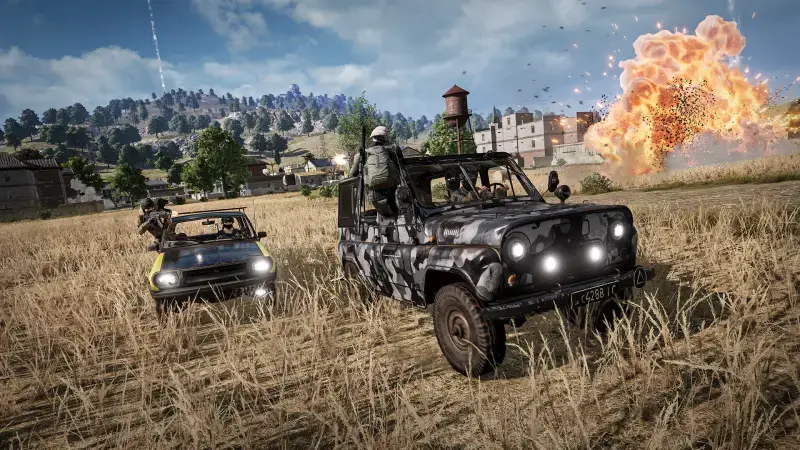
PUBG: Battlegrounds has been free to play since 2022 and is still one of the most played battle royale games. Even so, its large Unreal Engine maps can easily push a mid-range PC. This guide collects the official minimum and recommended requirements Krafton publishes on Steam, which platforms the game runs on, and the in-game graphics settings you can change when your frame rate is low.
Official System Requirements
On PUBG's Steam page Krafton gives both a minimum and a recommended configuration. Both lists require a 64-bit processor and operating system:
- Minimum: 64-bit Windows 10, Intel Core i5-4430 / AMD FX-6300, 8 GB RAM, NVIDIA GeForce GTX 960 2 GB / AMD Radeon R7 370 2 GB, DirectX 11, a broadband connection and 40 GB of free space.
- Recommended: 64-bit Windows 10, Intel Core i5-6600K / AMD Ryzen 5 1600, 16 GB RAM, NVIDIA GeForce GTX 1060 3 GB / AMD Radeon RX 580 4 GB, DirectX 11, a broadband connection and 50 GB of free space.
The biggest difference between the two lists is memory: the game launches with 8 GB, but texture streaming on large maps like Erangel can cause stutter; 16 GB largely solves that. On the graphics side a GTX 1060-class card is a reasonable baseline for high frame rates at 1080p. Krafton's support page notes that the minimum configuration merely runs the game, while the recommended one targets 144 fps in most situations. The storage line has grown over time too; an SSD reduces both loading screens and texture pop-in while parachuting.
macOS, Linux and Steam Deck
On PC, PUBG only has a Windows version; macOS and Linux are not ticked on the Steam page and there is no official client for those platforms. On Steam Deck the picture is clearer: the game is listed as "Unsupported" in Valve's compatibility program, the reason being that its anti-cheat does not run on the platform. Players who try through Proton hit the same wall. If you're on a Mac or Linux, there is no official way to play PUBG.
Graphics Settings for Low FPS
The Graphics tab in PUBG's Settings menu holds the options that affect frame rate most. On a weak system it makes sense to go in this order; option names are given as they appear in the game's English interface:
- Display Mode and Render Scale: Choose Fullscreen and keep Render Scale at 100. Above 100 it supersamples and costs frames; below 100 it gains frames but blurs the image. Only drop to 90 when nothing else is enough.
- Shadows: The lowest level ("Very Low") is one of the settings with the biggest frame-rate impact. Player shadows are still rendered at this level.
- Post-Processing: Controls lighting effects and is expensive; "Very Low" makes a small visual difference while gaining noticeable frames.
- Effects: Explosions and particle effects. "Very Low" avoids frame drops, but because effects that give away enemies, such as muzzle flash, are also simplified, some players try the medium level.
- Anti-Aliasing: "Very Low" turns anti-aliasing off completely, "Low" uses FXAA, and medium and above use TAA. Its impact is small compared to the other settings; if the image looks very jagged, "Low" is a reasonable middle ground.
- Textures: Texture quality mostly consumes graphics memory rather than frame rate. On a card with 3-4 GB or more you can leave it at "Medium" or "High".
- View Distance and Foliage: View Distance sets how far building models are drawn and barely affects frame rate; Foliage no longer changes grass draw distance. Leaving both at medium is safe.
- Sharpen, Motion Blur, V-Sync and the frame cap: Turn Sharpen and Motion Blur off, keep V-Sync off because it adds input lag, and set the In-Game FPS Cap to your monitor's refresh rate. The "Smoothed Frame Rate" option also adds latency and should stay off.
After each change, check your frame rate in the training area or the first minutes of a match; that's the only way to see which setting really makes a difference on your system. Keeping your graphics driver up to date and enabling Game Mode in Windows can also gain a few free frames.
About Launch Options
Claims about boosting PUBG's FPS with Steam launch options are everywhere online. In our PUBG FPS boost launch options article we went through them one by one and found that most are either ineffective in Unreal Engine 4 or simply repeat the default behaviour; sorting out the in-game settings first always brings the bigger gain.
Conclusion
The official baseline for PUBG is 64-bit Windows 10, an i5-4430-class processor, 8 GB of RAM and a GTX 960; for a comfortable experience 16 GB of RAM and a GTX 1060 / RX 580-class card are recommended. There is no macOS or Linux version, and Steam Deck is unsupported because of anti-cheat. If your frame rate is low, dropping Shadows and Post-Processing to "Very Low" while keeping Render Scale at 100 is enough on most systems.
Once performance is sorted, take a look at our PUBG secret rooms guide, and if you're curious about the same topic for another game, read our Dota 2 system requirements article.