Hello, first of all, if you are encountering the TPM 2.0 error, make sure that your motherboard supports TPM 2.0 before proceeding with the following steps.
Solution for Secure Boot Error:
- Restart your computer from the Windows menu.
- Enter the BIOS using the designated key (Del, F2, etc.).
- Navigate to the Boot or Advanced section (this may vary depending on the BIOS version).
- Go to the Windows Boot UEFI Configuration section.
- Enable the UEFI option.
- Then, enable the Secure Boot option located below it.
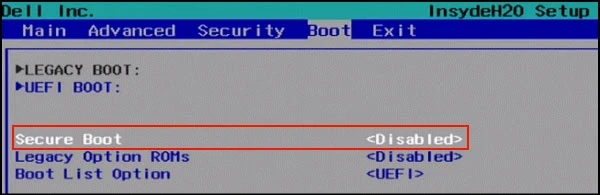
Now we can move on to the TPM 2.0 error.
Solution for TPM 2.0 Error:
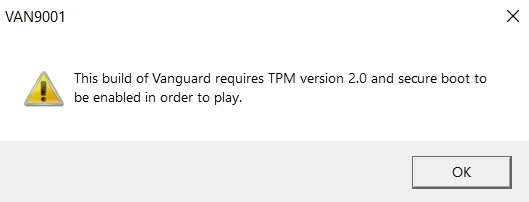
- First, press the Windows key + R combination.
- Type "tpm.msc" in the dialog box. If the screen that appears is empty, it means TPM 2.0 is disabled.
- As described earlier, enter the BIOS settings.
- Go to Security > Trust Technology > Enable and save the settings.
- Your issue should be resolved.
If the UEFI option is available and you cannot find the Secure Boot option, enable the SVM mode setting.